Kiali Chatbot
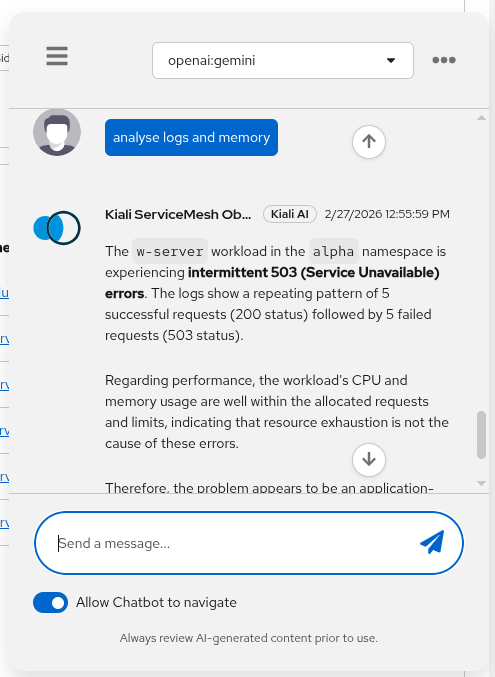
Kiali Chatbot is Kiali’s built-in AI assistant in the Kiali UI. It lets you ask questions about your service mesh and get answers backed by live data from Kiali and its configured backends (Prometheus, tracing, Kubernetes, etc.).
It does not require an external MCP server. Kiali includes its own set of MCP-style tools internally, so the AI can call them without depending on a separate MCP deployment.
Status
The Kiali chatbot was first released in Kiali version 2.22 and it is in Dev preview.
How does it work
At a high level:
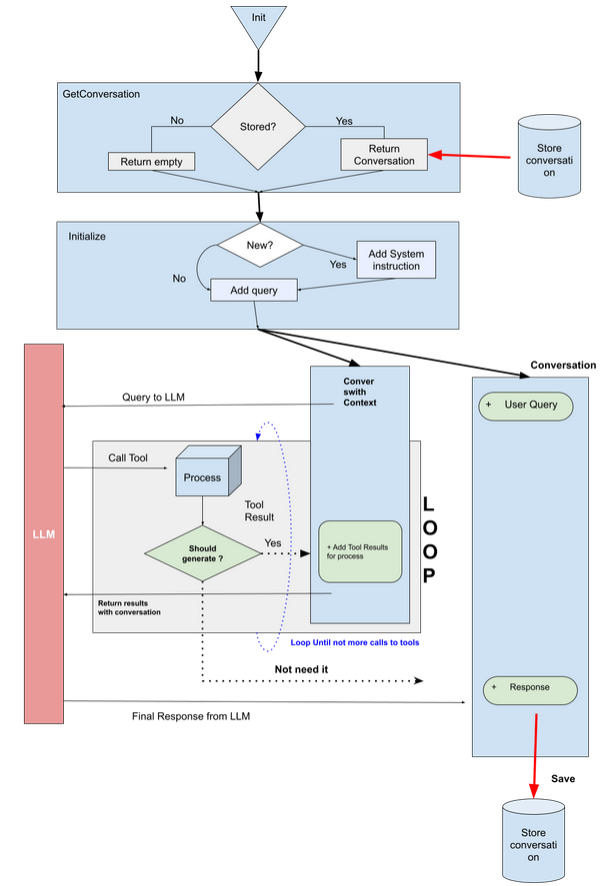
- The Kiali UI sends your chat request (prompt + context + selected model) to the Kiali backend.
- Kiali selects the configured provider/model from
chat_ai. - The provider calls the LLM with a set of internal MCP tools (defined in Kiali under
kiali/ai/mcp). - The LLM may request tool calls (e.g. mesh graph, traces, resource details, workload logs, Istio config operations).
- Kiali executes those tool calls against Kiali/Kubernetes/Prometheus/tracing backends and returns the final answer, including optional UI navigation actions and documentation citations.
For configuration keys (enable/disable, providers/models, store), see the chat_ai section in the Kiali CR spec.
Tool schemas (inputs/outputs)
Kiali Chatbot uses internal tools with defined input schemas and structured outputs.
Configuring the Kiali Chatbot
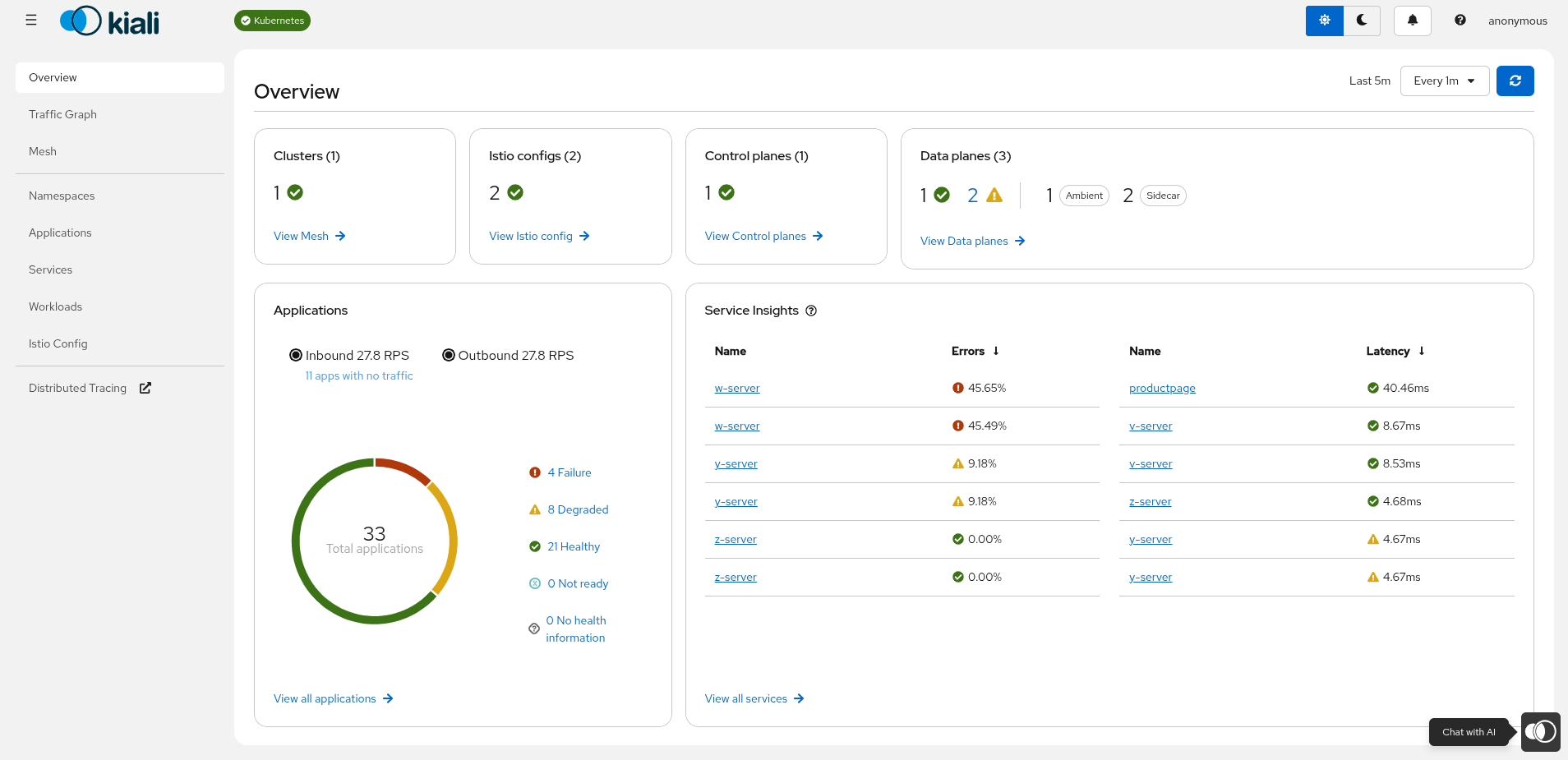
The Kiali Chatbot is disabled by default. To enable it, set chat_ai.enabled: true.
When enabled, you will see the chatbot icon in the Kiali UI:
You must also configure at least one provider and model (including an API key), and pick a default provider/model.
Switching model providers
Kiali Chatbot providers and models are configured in chat_ai:
- Providers: OpenAI-compatible (
type: openai) and Google (type: google). - Models are selected by name (per-provider) and can be enabled/disabled.
- API keys can be set inline (not recommended) or via
secret:<secret-name>:<key-in-secret>.
Example configuration (showing an OpenAI-compatible provider using Gemini via OpenAI endpoint):
chat_ai:
  enabled: true
  default_provider: "openai"
  providers:
    - name: "openai"
      enabled: true
      description: "OpenAI API Provider"
      type: "openai"
      config: "default"
      default_model: "gemini"
      models:
        - name: "gemini"
          enabled: true
          model: "gemini-2.5-pro"
          description: "Model provided by Google with OpenAI API Support"
          endpoint: "https://generativelanguage.googleapis.com/v1beta/openai"
          key: "secret:my-key-secret:openai-gemini"
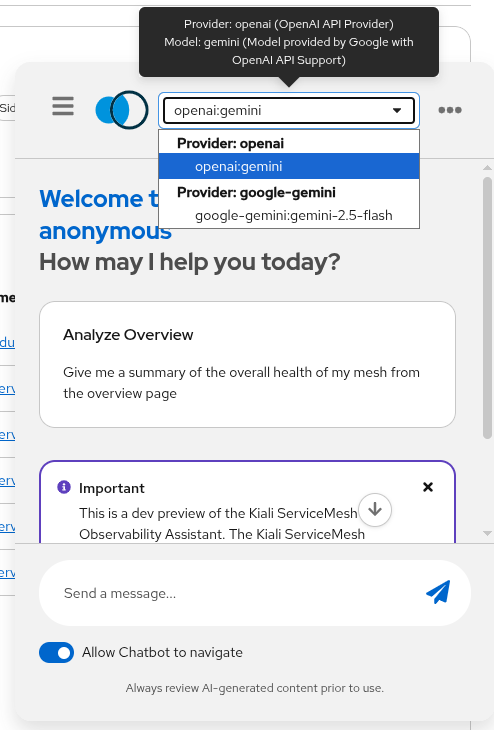
You can also select the configured models and providers in the chatbot window:
What you can ask
Examples of tasks that work well:
- Mesh/namespace topology and summaries (graph, status)
- Basic observability questions (metrics, traces)
- Troubleshooting workflows (get logs for a workload, identify failing namespaces)
Example prompts
- “Show me the mesh graph for namespace
bookinfo.” - “Which workloads in
istio-systemlook unhealthy and why?” - “Get traces for service
productpageinbookinfofor the last 30m.”
Next step
If you want to use an AI assistant outside the Kiali UI (for example, in an IDE), see Kiali MCP.