ACM Observability
Configure Kiali to use Red Hat Advanced Cluster Management Observability for centralized metrics in multi-cluster OpenShift environments.
Kiali has support for Istio multi-cluster installations.
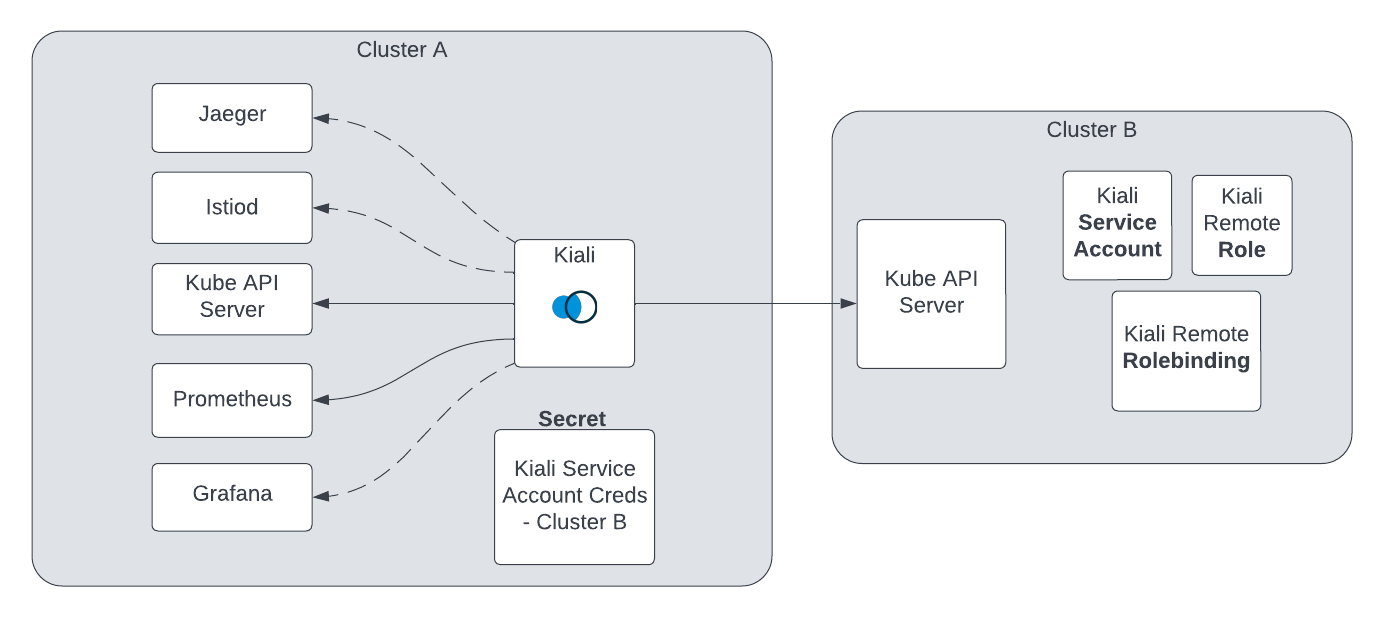
Before proceeding with the setup, ensure you meet the requirements.
Aggregated metrics and traces. Kiali needs a single endpoint for metrics and a single endpoint for traces where it can consume aggregated metrics/traces across all clusters. There are many ways to aggregate metrics/traces such as Prometheus federation or using OTEL collector pipelines but setting these up are outside of the scope of Kiali.
Anonymous, OpenID or OpenShift authentication strategy. The unified multi-cluster configuration currently only supports anonymous, OpenID and OpenShift authentication strategies. In addition, current support varies by provider for OpenID across clusters.
The unified Kiali multi-cluster setup requires the Kiali Service Account (SA) to have read access to each Kubernetes cluster in the mesh. This is separate from the user credentials that are required when a user logs into Kiali. The user credentials are used to check user access to a namespace and to perform write operations. In anonymous mode, the Kiali SA is used for all operations. Write access need not be required if you only want to give Kiali “view-only” capabilities. To give the Kiali SA access to each remote cluster, a kubeconfig with credentials needs to be created and mounted into the Kiali pod. While the location of Kiali in relation to the controlplane and dataplane may change depending on your Istio deployment model, the requirements will remain the same.
Although not required for some deployment models, it is recommended that the Kiali namespace and instance name be consistent across all clusters, including remote clusters without a Kiali server deployed. If not using default values, the following Kiali CR settings should typically have consistent values:
spec.deployment.namespacespec.deployment.instance_nameCreate a SA and its associated resources on the remote cluster. In order for Kiali to access a remote cluster, you first must create a SA and its role/role binding with the proper permissions. There are three ways to do this:
Kiali Operator (recommended): Deploy the Kiali Operator on the remote cluster and create a Kiali CR with spec.deployment.remote_cluster_resources_only: true. The Operator will create and manage the SA, role, and role binding. Deleting the Kiali CR will remove these resources.
Kiali Server helm chart: Use the kiali-server helm chart with --set deployment.remote_cluster_resources_only=true.
kiali-prepare-remote-cluster.sh script: Use the script with --process-remote-resources true. See the script usage notes in step 2 below.
openshift auth strategy, there are additional OpenShift-specific requirements for this step. See the OpenShift multi-cluster documentation before proceeding.
Create a remote cluster secret. Kiali needs a kubeconfig stored in a Kubernetes secret in order to access the remote cluster. This secret contains the SA token from step 1 and the remote cluster’s connection info. A remote cluster secret will look something like this:
apiVersion: v1
kind: Secret
metadata:
  name: my-cluster-name
  labels:
    kiali.io/multiCluster: "true"
stringData:
  my-cluster-name: |
    apiVersion: v1
    kind: Config
    preferences: {}
    current-context: my-cluster-name
    contexts:
    - name: my-cluster-name
      context:
        cluster: my-cluster-name
        user: my-cluster-name
    users:
    - name: my-cluster-name
      user:
        token: <...the long remote cluster SA token string goes here...>
    clusters:
    - name: my-cluster-name
      cluster:
        server: <...the URL to your remote cluster goes here...>
        certificate-authority-data: <...the long CA data goes here...>
You can place multiple kubeconfigs in a single secret, each under its own key in stringData where the key name must be the name of the remote cluster. Name the secret kiali-multi-cluster-secret for the added benefit of having the operator automatically detect this secret without having to configure anything within the Kiali CR. If you do name the secret kiali-multi-cluster-secret you also can add to it the label kiali.io/kiali-multi-cluster-secret="true" which will tell the operator to restart the Kiali Server pod automatically when the secret changes thus allowing the server to pick up the changes immediately. A multi-cluster secret with two clusters named my-cluster-name and my-other-cluster would look like this:
apiVersion: v1
kind: Secret
metadata:
  name: kiali-multi-cluster-secret
  labels:
    kiali.io/kiali-multi-cluster-secret: "true"
stringData:
  my-cluster-name: |
    apiVersion: v1
    kind: Config
    preferences: {}
    current-context: my-cluster-name
    contexts:
    - name: my-cluster-name
      context:
        cluster: my-cluster-name
        user: my-cluster-name
    users:
    - name: my-cluster-name
      user:
        token: <...the long remote cluster SA token string goes here...>
    clusters:
    - name: my-cluster-name
      cluster:
        server: <...the URL to your remote cluster goes here...>
        certificate-authority-data: <...the long CA data goes here...>
  my-other-cluster: |
    apiVersion: v1
    kind: Config
    preferences: {}
    current-context: my-other-cluster
    contexts:
    - name: my-other-cluster
      context:
        cluster: my-other-cluster
        user: my-other-cluster
    users:
    - name: my-other-cluster
      user:
        token: <...the long remote cluster SA token string goes here...>
    clusters:
    - name: my-other-cluster
      cluster:
        server: <...the URL to your remote cluster goes here...>
        certificate-authority-data: <...the long CA data goes here...>
The verify-kiali-permissions.sh script can be used to check that your remote cluster secret provides the necessary permissions that Kiali needs to access the remote cluster. See the comments at the top of the script and its --help output for details on how to run it, but here’s an example:
curl -L -o verify-kiali-permissions.sh https://raw.githubusercontent.com/kiali/kiali/master/hack/istio/multicluster/verify-kiali-permissions.sh
chmod +x verify-kiali-permissions.sh
./verify-kiali-permissions.sh --kubeconfig-secret istio-system:kiali-multi-cluster-secret:my-cluster-name --kiali-version v2.10.0
It is up to you how you want to create and manage the token and secret, however, you can use the kiali-prepare-remote-cluster.sh script (with the --process-kiali-secret true option) to simplify this process for you.
The kiali-prepare-remote-cluster.sh script can be used to:
and/or,
In order to run this script you will need adequate permissions configured in your local kubeconfig for both the cluster on which Kiali is deployed and the remote cluster.
For example:
curl -L -o kiali-prepare-remote-cluster.sh https://raw.githubusercontent.com/kiali/kiali/master/hack/istio/multicluster/kiali-prepare-remote-cluster.sh
chmod +x kiali-prepare-remote-cluster.sh
./kiali-prepare-remote-cluster.sh --kiali-cluster-context east --remote-cluster-context west --view-only false --process-kiali-secret true --process-remote-resources true
If you used the Kiali Operator (or helm chart) to create the remote cluster resources (step 1 above) and are using this script only to create the remote cluster secret (--process-remote-resources false --process-kiali-secret true), you must pass --kiali-resource-name set to the name of the Service Account created by the Operator. The Operator names the SA <instance_name>-service-account (e.g. kiali-service-account for the default instance name kiali). For example:
./kiali-prepare-remote-cluster.sh \
  --kiali-cluster-context east \
  --remote-cluster-context west \
  --kiali-resource-name kiali-service-account \
  --process-remote-resources false \
  --process-kiali-secret true \
  --view-only false
Specifying the remote cluster name: The script derives the remote cluster name from the kubeconfig context, which may contain characters not valid in a Kubernetes secret key (e.g. colons in OpenShift-generated context names). Always pass --remote-cluster-name explicitly, set to the name Istio uses for the remote cluster, to avoid this issue:
./kiali-prepare-remote-cluster.sh \
  ... \
  --remote-cluster-name west
Use the option --help for additional details on using the script to create and delete the remote cluster resources and secrets.
Configure Kiali. The Kiali Operator needs to know about the remote cluster secrets so it can mount them into the Kiali Server pod. There are three ways to do this:
Auto-discovery by label (default): The Kiali Operator will automatically detect any secret in the Kiali deployment namespace that has the label kiali.io/multiCluster="true". The secrets created by the kiali-prepare-remote-cluster.sh script are labeled this way and will be auto-detected with no additional Kiali CR configuration needed.
Explicit configuration: In the Kiali CR you can explicitly specify each remote cluster secret rather than rely on auto-discovery.
Single combined secret: Create a single secret named kiali-multi-cluster-secret in the Kiali deployment namespace containing kubeconfigs for all remote clusters, each under its own top-level key in stringData where the key is the cluster name. If you also label this secret with kiali.io/kiali-multi-cluster-secret="true", the Kiali Operator will auto-detect changes and roll out a new Kiali Server pod automatically.
kiali.io/kiali-multi-cluster-secret="true" on any other secret not specifically named kiali-multi-cluster-secret. The operator will not have permission to see that secret and errors will occur if you attempt this.
kiali-multi-cluster-secret, all Kiali Servers in that namespace are required to use that secret. If you want each Kiali Server to talk to a different set of clusters, you must not use the kiali-multi-cluster-secret secret.
Once the Kiali Operator knows about the remote cluster secrets (either through auto-discovery or through explicit configuration) it will mount them into the Kiali Server pod, putting Kiali in “multi-cluster” mode. Kiali will begin using those credentials to communicate with the other clusters in the mesh.
Configure user access. When using anonymous mode, the Kiali SA credentials will be used to display mesh info to the user. When not using anonymous mode, Kiali will check the user’s access to each configured cluster’s namespace before showing the user any resources from that namespace.
Optional - Narrow metrics to mesh. If your unified metrics store also contains data outside of your mesh, you can limit which metrics Kiali will query for by setting the query_scope configuration.
That’s it! From here you can login to Kiali and manage your mesh across all clusters from a single Kiali instance.
To remove a cluster from Kiali, you must delete the associated remote cluster secret. If you originally created the remote cluster secret via the kiali-prepare-remote-cluster.sh script, run that script again with the same command line options as before but also pass in the command line option --delete true.
kiali-prepare-remote-cluster.sh script to create these resources, use it to remove these resources.
After the remote cluster secret has been removed, you must then tell the Kiali Operator to re-deploy the Kiali Server so the Kiali Server no longer attempts to access the now-deleted remote cluster secret. If you are using auto-discovery, you can tell the Kiali Operator to do this by touching the Kiali CR. The easiest way to do this is to simply add or modify any annotation on the Kiali CR. It is recommended that you use the kiali.io/reconcile annotation as described here. If you did not rely on auto-discovery but instead explicitly specified each remote cluster secret in the Kiali CR, then you simply have to remove the now-deleted remote cluster secret’s information from the Kiali CR’s clustering.clusters section. Finally, if you are using the single kiali-multi-cluster-secret to define all of your remote clusters (and you labeled that secret with kiali.io/kiali-multi-cluster-secret="true"), then you do not have to do anything other than delete that one secret. The Kiali Operator will detect that the secret has been removed and will re-deploy the Kiali Server automatically.
If you would like to keep a separate Kiali per cluster or you do not want to give Kiali access to remote clusters, you can still manually specify the remote clusters and remote Kiali URLs in the Kiali configuration and the Kiali UI will try to provide links to the remote Kiali UIs where appropriate.
For example, if there is a Kiali on the east cluster that does not have access to the west cluster and a Kiali on the west cluster that does not have access to the east cluster, you can add the following to your Kiali configurations to have each Kiali generate links to the Kiali for that cluster.
East Kiali configuration
clustering:
  clusters:
    name: west
  kiali_urls:
    cluster_name: west
    instance_name: kiali
    namespace: istio-system
    url: https://kiali-external.west.example.com
West Kiali configuration
clustering:
  clusters:
    name: east
  kiali_urls:
    cluster_name: east
    instance_name: kiali
    namespace: istio-system
    url: https://kiali-external.east.example.com
Configure Kiali to use Red Hat Advanced Cluster Management Observability for centralized metrics in multi-cluster OpenShift environments.
Deploy Kiali on a Management Cluster.