This is the multi-page printable view of this section. Click here to print.
Chatbot
- 1: Chatbot
- 2: Token prices
- 3: Budgets
- 4: Tools (schemas)
1 - Chatbot
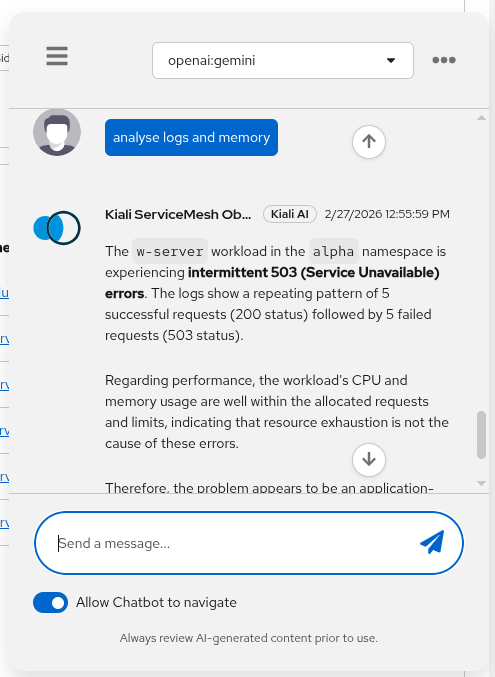
Kiali Chatbot is Kiali’s built-in AI assistant in the Kiali UI. It lets you ask questions about your service mesh and get answers backed by live data from Kiali and its configured backends (Prometheus, tracing, Kubernetes, etc.).
It does not require an external MCP server. Kiali includes its own set of MCP-style tools internally, so the AI can call them without depending on a separate MCP deployment.
Status
The Kiali chatbot was first released in Kiali version 2.22 and it is in Dev preview.
How does it work
At a high level:
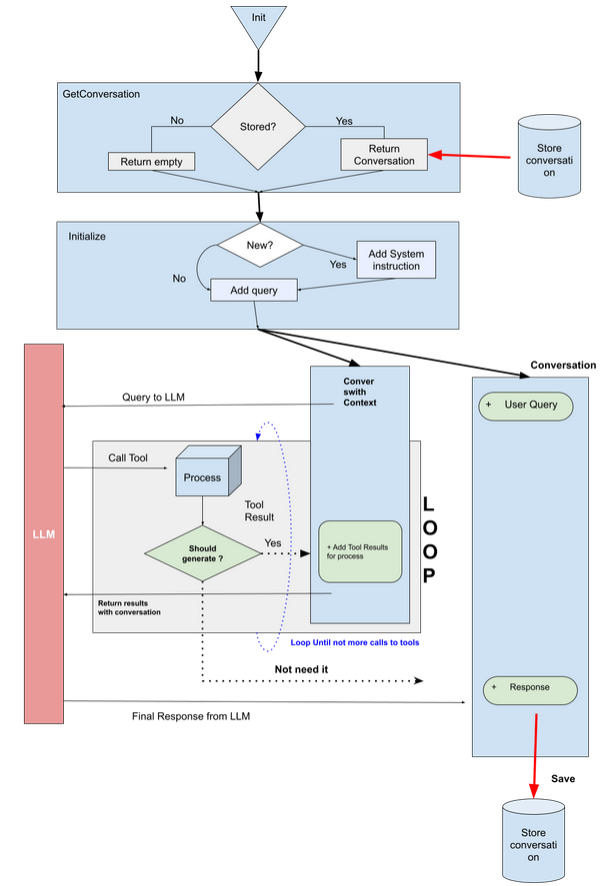
- The Kiali UI sends your chat request (prompt + context + selected model) to the Kiali backend.
- Kiali selects the configured provider/model from
ai.chat. - The provider calls the LLM with a set of internal MCP tools (defined in Kiali under
kiali/ai/mcp). - The LLM may request tool calls (e.g. mesh graph, traces, resource details, workload logs, Istio config operations).
- Kiali executes those tool calls against Kiali/Kubernetes/Prometheus/tracing backends and returns the final answer, including optional UI navigation actions and documentation citations.
- The response is delivered as streaming events (for example:
start,token,tool_call,tool_result,end,error) so the UI can progressively render tokens and tool activity in real time.
For configuration keys (enable/disable, tool filters, providers/models, store), see the ai.chat section in the Kiali CR spec.
To estimate ChatAI cost from token usage, ai.metrics must be enabled. You can then set a custom price catalog and optional per-user budgets. If you do not set ai.consumption.prices_config_map, Kiali uses the built-in catalog. See Token prices and Budgets.
Tool schemas (inputs/outputs)
Kiali Chatbot uses internal tools with defined input schemas and structured outputs.
Configuring the Kiali Chatbot
chat_ai configuration is deprecated since v2.31 and has been moved under ai.chat.
The Kiali Chatbot is disabled by default. To enable it, set ai.enabled: true and ai.chat.enabled: true.
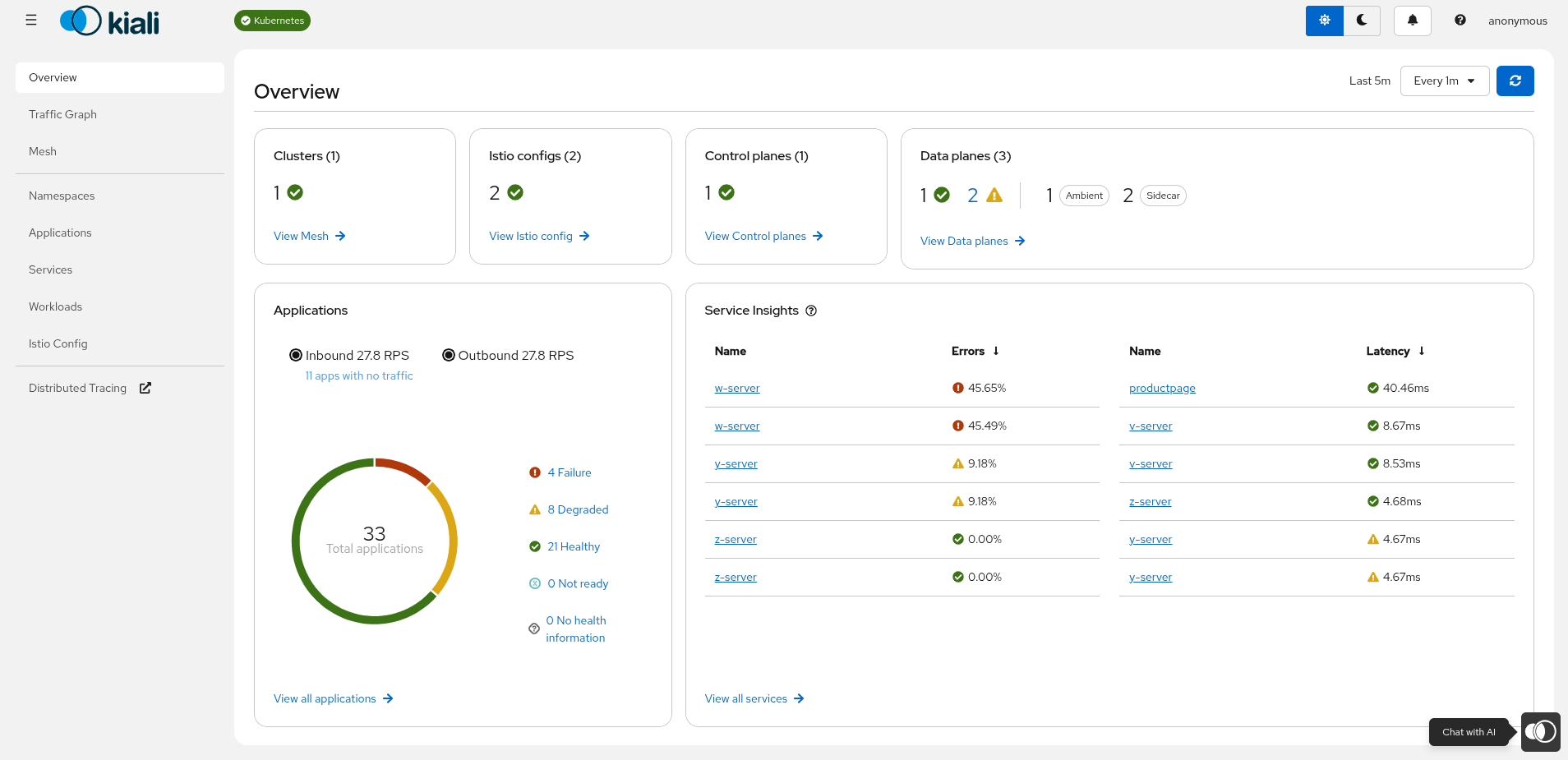
When enabled, you will see the chatbot icon in the Kiali UI:
You must also configure at least one provider and model (including an API key), and pick a default provider/model.
Restricting access
By default, when the Chatbot is enabled, it is available to all users. You can restrict access to specific users by configuring the allowed_users list:
ai:
  enabled: true
  chat:
    enabled: true
    allowed_users:
      - "user1"
      - "user2"
If allowed_users is empty (the default), all users have access. If it is not empty, only the users listed will see and be able to use the Chatbot.
Switching model providers
Kiali Chatbot providers and models are configured in ai.chat:
- Providers: OpenAI (
type: openai), Google (type: google), Anthropic (type: anthropic), and LightSpeed (type: lightspeed). - Models are selected by name (per-provider) and can be enabled/disabled.
- API keys can be set inline (not recommended) or via
secret:<secret-name>:<key-in-secret>. - Tool exposure can be filtered globally with
ai.chat.toolsand further restricted per provider withai.chat.providers[].tools.
Example configuration (showing three providers: OpenAI, Google, and Anthropic):
ai:
  enabled: true
  chat:
    default_provider: "openai"
    tools:
      disabled_tools:
        - "manage_istio_config"
    providers:
      - name: "openai"
        enabled: true
        description: "OpenAI provider"
        type: "openai"
        config: "default"
        default_model: "gpt"
        tools:
          enabled_tools:
            - "get_logs"
            - "get_mesh_status"
            - "list_traces"
        models:
          - name: "gpt"
            enabled: true
            model: "<openai-model-name>"
            key: "secret:my-key-secret:openai-api-key"
      - name: "google"
        enabled: true
        description: "Google provider"
        type: "google"
        config: "gemini"
        default_model: "gemini"
        models:
          - name: "gemini"
            enabled: true
            model: "gemini-2.5-pro"
            description: "Model provided by Google with OpenAI API Support"
            endpoint: "https://generativelanguage.googleapis.com/v1beta/openai"
            key: "secret:my-key-secret:google-api-key"
      - name: "anthropic"
        enabled: true
        description: "Anthropic provider"
        type: "anthropic"
        config: "default"
        default_model: "claude-haiku"
        key: "secret:my-key-secret:claude-api-key"
        models:
          - name: claude-sonnet
            model: "claude-sonnet-4-5"
            enabled: true
            endpoint: "https://api.anthropic.com/"
          - name: claude-haiku
            model: "claude-haiku-4-5"
            enabled: true
enabled_tools acts as an allowlist: when set, only the listed tool names are exposed. disabled_tools acts as a denylist and is applied afterwards. You can define these filters globally under ai.chat.tools and/or per provider under ai.chat.providers[].tools. Provider-level filters can only further restrict the already-allowed global toolset.
To see the available built-in tool names you can use in these lists, see Kiali Chatbot tools.
LightSpeed provider example:
ai:
  enabled: true
  chat:
    providers:
      - name: "LightSpeed"
        description: "Openshift LightSpeed"
        type: "lightspeed"
        endpoint: "<LightSpeed endpoint>"
        enabled: true
TLS verification
By default, Kiali verifies the TLS certificate of AI provider endpoints. Kiali uses its CA bundle (kiali-cabundle ConfigMap) and the platform TLS policy when connecting to providers.
If the provider uses a self-signed certificate that is not in Kiali’s CA bundle, you can disable TLS verification per provider:
ai:
  enabled: true
  chat:
    providers:
      - name: "LightSpeed"
        type: "lightspeed"
        endpoint: "https://lightspeed-app-server.openshift-lightspeed.svc:8443"
        enabled: true
        insecure_skip_verify: true
insecure_skip_verify: true disables certificate validation for that provider. Use this only for development or testing. In production, add the provider’s CA certificate to the kiali-cabundle ConfigMap instead.
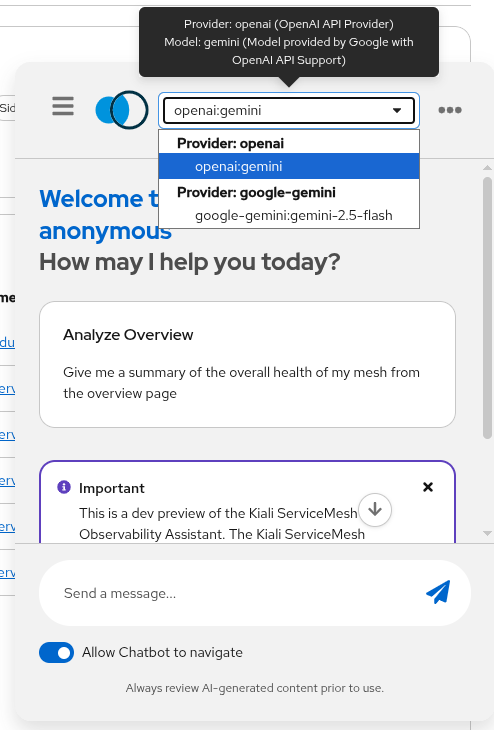
You can also select the configured models and providers in the chatbot window:
When the assistant uses a tool, Kiali shows a tool-result card directly in the chat so you can see which tool was executed:
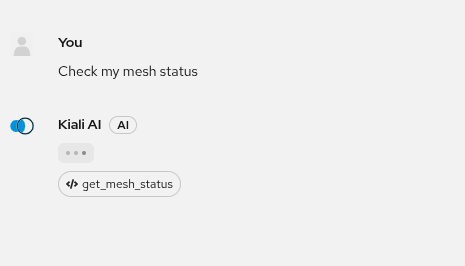
You can click the square tool-result card to open the full tool output in a modal window:
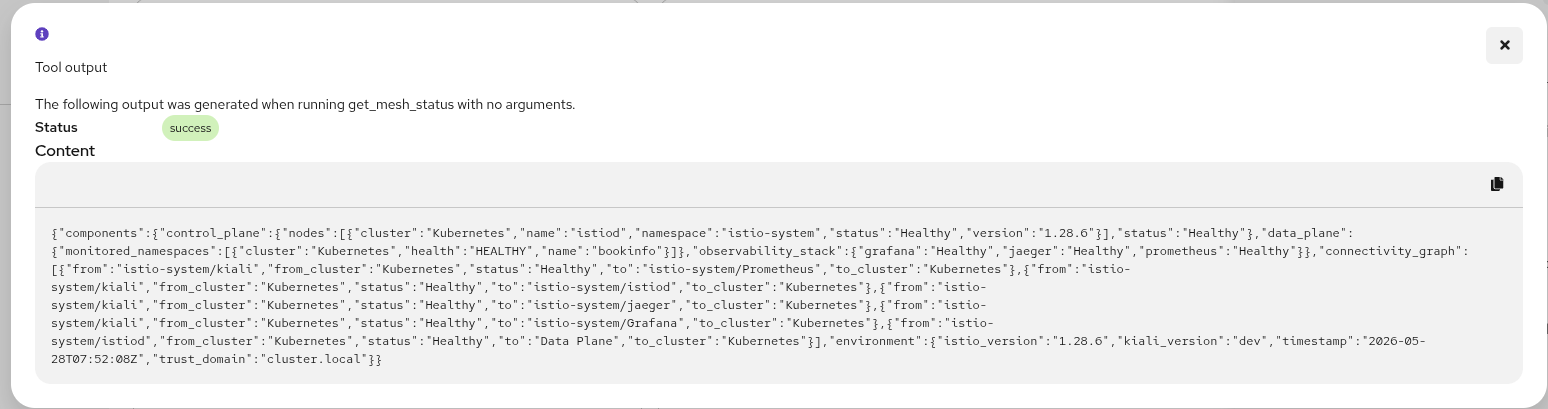
In this modal view you can inspect the complete tool response in detail (for example returned resources, metrics, or logs) before continuing the conversation.
Streaming events in the chat
Kiali Chatbot UI updates are powered by server-sent streaming events from the backend. This is why responses appear incrementally (token by token), and why tool usage is shown as it happens.
In practice:
tokenevents render incremental assistant text.tool_callandtool_resultevents render the tool card and its status/output.endfinalizes the answer, including optional UI actions and documentation references.errorreports failures without waiting for a full response timeout.
What you can ask
Examples of tasks that work well:
- Mesh/namespace topology and summaries (graph, status)
- Basic observability questions (metrics, traces)
- Troubleshooting workflows (get logs for a workload, identify failing namespaces)
Predefined prompts
Kiali Chatbot displays a set of suggested prompts tailored to the page you are currently viewing. The suggestions change as you navigate between pages (Overview, Graph, Mesh, Namespaces, Applications, Services, Workloads, Istio Config), so the most relevant questions for your current context are always one click away.
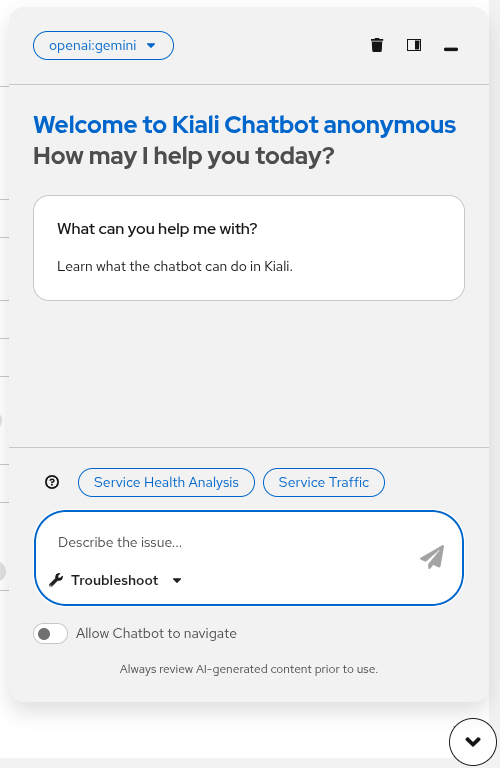
The prompts are served by a built-in server-side catalog through the GET /api/chat/prompts endpoint. Use the optional ?category=<page> query parameter to fetch prompts for a specific page. If the endpoint is unavailable, the chatbot falls back to a set of static prompts.
Clicking a suggested prompt populates the message input so you can review or edit the text before sending it.
Example prompts
- “Show me the mesh graph for namespace
bookinfo.” - “Which workloads in
istio-systemlook unhealthy and why?” - “Get traces for service
productpageinbookinfofor the last 30m.”
Ask vs. Troubleshoot mode
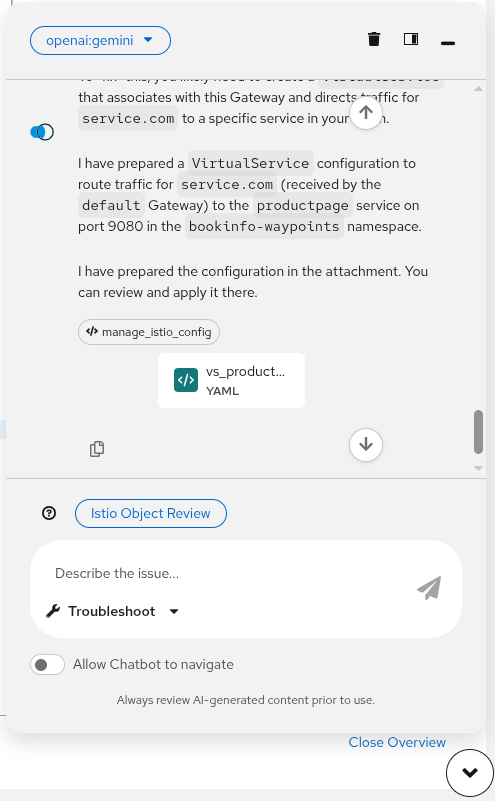
The chatbot input area includes a mode selector (the dropdown next to the send button) that lets you switch between two interaction modes: Ask and Troubleshoot.
Ask mode is a conversational Q&A mode. Use it to ask general questions about your mesh, namespaces, services, or Istio configuration. The assistant answers using its knowledge and the available internal tools, but the interaction is free-form and exploratory.
Troubleshoot mode is a structured diagnostic mode. Use it when you have a specific issue to investigate. In this mode, the chatbot:
- Accepts a description of the problem as the starting point.
- Automatically selects a relevant set of tools (logs, traces, metrics, Istio config checks) to gather evidence.
- Follows a systematic diagnostic workflow and summarizes its findings with a recommended course of action.
The difference between the two modes depends a lot on the model used. In the case of LightSpeed, the modes are handled natively by the provider. For other models, the system prompt is adapted for each mode.
Next step
If you want to use an AI assistant outside the Kiali UI (for example, in an IDE), see Kiali MCP.
2 - Token prices
Kiali can estimate the monetary cost of ChatAI usage from a per-model token price catalog. Those estimates appear on the AI consumption dashboard and can be used with optional per-user budgets.
To use consumption tracking, token prices, and the AI consumption dashboard, ai.metrics must be enabled (ai.metrics: true). If metrics are disabled, Kiali does not record token usage, does not estimate cost, and does not show consumption data.
Cost estimates, dashboard access, and the price catalog are configured under ai.consumption. For the configuration keys, see ai.metrics and ai.consumption in the Kiali CR spec.
Default catalog
You do not have to configure token prices. If ai.consumption.prices_config_map is omitted or left empty (""), Kiali automatically uses the built-in catalog shipped in the Kiali binary:
That file lists USD prices per million tokens for Anthropic, OpenAI, and Google models (and optional cache read/write rates where the provider publishes them). The operator and Helm chart do not mount an extra volume in this default case.
Enable metrics (required) and leave pricing unset:
ai:
  enabled: true
  metrics: true
  consumption:
    prices_config_map: ""   # default: built-in catalog
How cost is calculated
Kiali matches each usage record to a catalog row by provider and model_id, then estimates:
input cost  = (prompt tokens / 1,000,000)     × input_cost_per_million
output cost = (completion tokens / 1,000,000) × output_cost_per_million
total       = input cost + output cost
If no catalog row matches the provider and model, tokens are still shown and cost is omitted.
Custom prices (prices_config_map)
To replace the built-in catalog (for example with your contract rates, a model not listed yet, or LightSpeed prices), create a ConfigMap in the Kiali deployment namespace and set ai.consumption.prices_config_map to its name.
The ConfigMap is user-managed. The operator never creates or writes it. The catalog in the ConfigMap replaces the built-in list; it is not merged.
- Create a ConfigMap whose data key is
prices.yaml, using the same schema as ai_default_prices.yaml:
apiVersion: v1
kind: ConfigMap
metadata:
  name: kiali-ai-prices
  namespace: istio-system   # Kiali's namespace
data:
  prices.yaml: |
    models:
      - provider: openai          # openai | anthropic | google | lightspeed
        model_id: gpt-4o          # must match the model ID recorded in usage
        currency: USD
        prices:
          input_cost_per_million: 2.50
          output_cost_per_million: 10.00
          cache_write_cost_per_million: 0      # optional
          cache_read_cost_per_million: 1.25    # optional
- Point Kiali at that ConfigMap.
Operator (Kiali CR):
spec:
  ai:
    enabled: true
    metrics: true
    consumption:
      prices_config_map: kiali-ai-prices
Helm (kiali-server values):
ai:
  enabled: true
  metrics: true
  consumption:
    prices_config_map: kiali-ai-prices
When prices_config_map is a non-empty name, the operator (and the kiali-server Helm chart) mounts that ConfigMap at /kiali-ai-pricing (optional: true, readOnly: true). Kiali reads /kiali-ai-pricing/prices.yaml.
If the file is missing or invalid, Kiali logs an error and falls back to the built-in ai_default_prices.yaml catalog.
Restart the Kiali pod after you change ConfigMap contents. Prices are loaded when configuration is read, not watched for live updates.
Catalog schema
Each entry under models::
| Field | Description |
|---|---|
provider |
Provider type: openai, anthropic, google, or lightspeed. |
model_id |
Provider model ID. Must match the model recorded in ChatAI usage. |
currency |
Pricing currency (typically USD). |
prices.input_cost_per_million |
Cost per million prompt tokens. |
prices.output_cost_per_million |
Cost per million completion tokens. |
prices.cache_write_cost_per_million |
Optional. Prompt-cache write rate, when the provider publishes one. |
prices.cache_read_cost_per_million |
Optional. Cached-input rate, when the provider publishes one. |
Copy rows from the built-in catalog and adjust the amounts you want Kiali to use.
Dashboard access
ai.consumption.allowed_users_dashboard lists usernames that may open the consumption dashboard. If the list is empty (the default), all authenticated users have access. This is independent of ai.chat.allowed_users, which controls who can use the Chatbot.
ai:
  enabled: true
  metrics: true
  consumption:
    allowed_users_dashboard:
      - "alice"
      - "bob"
Next step
To limit cost or tokens per user, see Budgets.
3 - Budgets
You can cap ChatAI usage per user with ai.consumption.budgets. Each budget sets a reset interval, optional cost and token limits, and optional provider/model allowlists. Cost limits use the same catalog described in Token prices.
To use consumption tracking, token prices, and budgets, ai.metrics must be enabled (ai.metrics: true). If metrics are disabled, budgets are not enforced and remaining-budget data is not shown.
If budgets is empty (the default), there are no budget restrictions.
For the field list, see ai.consumption in the Kiali CR spec.
Budget fields
Each item under ai.consumption.budgets is applied to one or more users:
| Field | Description |
|---|---|
usernames |
Users this budget applies to. Required and must not be empty. Use * as a catch-all for everyone else. |
interval |
When the budget resets: weekly or monthly. |
max_cost |
Maximum estimated cost in the interval, in the catalog currency (typically USD). |
max_tokens |
Maximum tokens in the interval, in millions of tokens (for example 10 means 10 million tokens). |
allowed_providers |
Provider types this budget allows: openai, anthropic, google, lightspeed. Empty means all configured providers. |
allowed_models |
Model names or IDs this budget allows. Supports * wildcards (for example claude-sonnet-*). Empty means all models of the allowed providers. |
allowed_providers and allowed_models must refer to providers and models already defined in ai.chat.providers.
How a budget is chosen
On each chat request, Kiali picks one budget for the current user:
- An exact username match (the
anonymous-shareduser is treated asanonymous). - Otherwise a
*catch-all budget, if one exists. - Otherwise no budget (the request is not limited).
An exact match always wins over *. Put specific users in their own entries, then optionally add a * entry for everyone else.
What is enforced
When metrics are enabled and a budget applies, Kiali:
- Rejects the request if the selected provider type is not in
allowed_providers. - Rejects the request if the selected model is not in
allowed_models. - Rejects the request if used cost in the current interval is at or above
max_cost, or used tokens are at or abovemax_tokensmillion tokens.
The chatbot and consumption dashboard can show remaining cost and tokens for the current user.
Example
ai:
  enabled: true
  metrics: true                 # required for usage, cost, and budgets
  consumption:
    budgets:
      - usernames: ["alice", "bob"]
        interval: monthly
        max_cost: 50
        max_tokens: 10          # 10 million tokens
        allowed_providers: ["openai", "anthropic"]
        allowed_models: ["gpt-4o", "claude-sonnet-*"]
      - usernames: ["*"]
        interval: weekly
        max_cost: 5
In this example:
- Alice and Bob share a monthly budget of 50 (USD, unless you changed the catalog currency) and 10 million tokens, and may only use the listed OpenAI and Anthropic models.
- Every other user shares a weekly budget of 5 in cost, with no token cap and no provider/model restriction.
Operator (Kiali CR) uses the same keys under spec.ai. Helm (kiali-server) uses them under ai.consumption.budgets.
4 - Tools (schemas)
Kiali Chatbot uses internal MCP-style tools (implemented inside Kiali) to fetch live data and perform safe actions. These are not external MCP server tools.
Administrators can control which of these tools are exposed to the AI by using ai.chat.tools for global filtering and ai.chat.providers[].tools for provider-specific filtering. Use the exact tool names below in enabled_tools and disabled_tools.
The tool input schemas are defined in Kiali under kiali/ai/mcp/tools/*.yaml. The tool outputs are JSON structures returned by the Kiali backend and consumed by the model and/or UI.
Tool list
get_action_ui: returns UI navigation actions (buttons/links).get_logs: returns workload or pod logs with optional filtering.get_mesh_status: returns high-level mesh health, control plane, observability stack, and connectivity status.get_mesh_traffic_graph: returns a compact service-to-service traffic topology with metrics such as throughput, response time, and mTLS.get_metrics: returns Istio or Envoy metrics for services, workloads, or apps.get_pod_performance: returns current pod CPU and memory usage versus requests and limits.get_referenced_docs: returns relevant Istio and Kiali documentation links.get_trace_details: returns the hierarchy and span details for a specific trace.list_or_get_resources: lists resources or returns details for services, workloads, apps, and namespaces.list_traces: returns a compact list of distributed traces for a service.manage_istio_config_read: lists or gets Istio config in read-only mode.manage_istio_config: creates, patches, or deletes Istio config with a confirmation flow for sensitive actions.