Kiali can link to Istio dashboards hosted in Grafana or Perses.
This is the multi-page printable view of this section. Click here to print.
Dashboards
Configuration for Istio dashboard integrations.
1 - Grafana
This page describes how to configure Grafana dashboards for Kiali.
Grafana configuration
Istio provides preconfigured Grafana dashboards for the most relevant metrics of the mesh. Although Kiali offers similar views in its metrics dashboards, it is not in Kiali’s goals to provide the advanced querying options, nor the highly customizable settings, that are available in Grafana. Thus, it is recommended that you use Grafana if you need those advanced options.
Kiali can provide a direct link from its metric dashboards to the equivalent or most similar Grafana dashboard, which is convenient if you need the powerful Grafana options.
The Grafana links will appear in the Kiali metrics pages. For example:
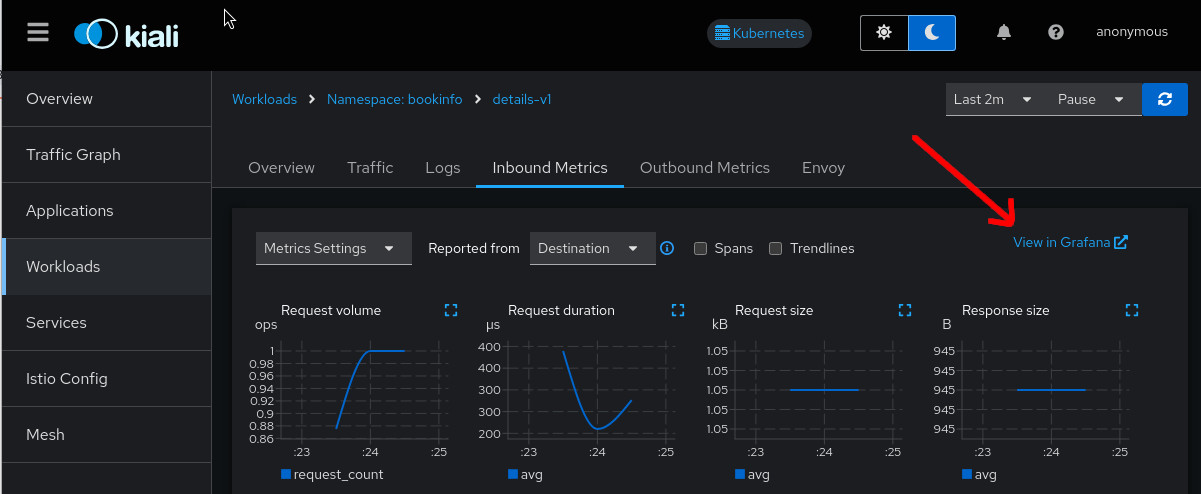
For these links to appear in Kiali you need to manually configure the Grafana URL and the dashboards that come preconfigured with Istio, like in the following example:
Kiali will query Grafana and try to fetch the configured dashboards. For this reason Kiali must be able to reach Grafana, authenticate, and find the Istio dashboards. The Istio dashboards must be installed in Grafana for the links to appear in Kiali.
spec:
  external_services:
    grafana:
      enabled: true
      # Grafana service name is "grafana" and is in the "telemetry" namespace.
      internal_url: 'http://grafana.telemetry:3000/'
      # Public facing URL of Grafana
      external_url: 'http://my-ingress-host/grafana'
      # Grafana datasource UID when there are multiple
      datasource_uid: ""
      dashboards:
      - name: "Istio Service Dashboard"
        variables:
          datasource: "var-datasource"
          namespace: "var-namespace"
          service: "var-service"
      - name: "Istio Workload Dashboard"
        variables:
          datasource: "var-datasource"
          namespace: "var-namespace"
          workload: "var-workload"
          datasource: "var-datasource"
      - name: "Istio Mesh Dashboard"
      - name: "Istio Control Plane Dashboard"
      - name: "Istio Performance Dashboard"
      - name: "Istio Wasm Extension Dashboard"
The described configuration is done in the Kiali CR when Kiali is installed using the Kiali Operator. If Kiali is installed with the Helm chart then the correct way to configure this is via regular –set flags.
Grafana authentication configuration
The Kiali CR provides authentication configuration that will be used to connect to your Grafana instance and for detecting your Grafana version in the Mesh graph.
spec:
  external_services:
    grafana:
      enabled: true
      auth:
        insecure_skip_verify: false
        password: "pwd"
        token: ""
        type: "basic"
        use_kiali_token: false
        username: "user"
      health_check_url: ""
To configure a secret to be used as a password, see this FAQ entry.
To authenticate using OAuth2 client_credentials flow, set type: "oauth2" and provide the oauth2 block:
spec:
  external_services:
    grafana:
      auth:
        type: "oauth2"
        oauth2:
          client_id: "my-client-id"
          client_secret: "secret:my-oauth2-secret:client_secret"
          token_url: "https://idp.example.com/token"
          scopes: []            # optional: list of OAuth2 scopes to request
          audience: ""          # optional: some providers require this
          auth_style: "header"  # "header" (default) or "params"
The client_secret field supports the secret:<secretName>:<secretKey> pattern for automatic secret mounting and rotation without pod restart. See the FAQ entry for details.
insecure_skip_verify applies only to the Grafana connection, not to the OAuth2 token endpoint. The token endpoint always validates TLS certificates. To trust a private CA for the token endpoint, add the CA to the kiali-cabundle ConfigMap as described in the TLS Configuration page.
TLS Certificate Configuration
If your Grafana server uses HTTPS with a certificate issued by a private CA, see the TLS Configuration page to learn how to configure Kiali to trust your CA.
2 - Perses
This page describes how to configure Perses dashboards for Kiali.
Perses configuration
The Perses community dashboards provide preconfigured Perses dashboards for the most relevant mesh metrics. Although Kiali offers similar views in its metrics dashboards, it is not in Kiali’s goals to provide the advanced querying options, nor the highly customizable settings, that are available in Perses. They are the same as those provided by Istio’s Grafana add-on. Thus, it is recommended that you use Perses if you need those advanced options.
Kiali, from version v2.15, can provide a direct link from its metric dashboards to the equivalent or most similar Perses dashboard, which is convenient if you need the powerful Perses options.
The Perses links will appear in the Kiali metrics pages. For example:
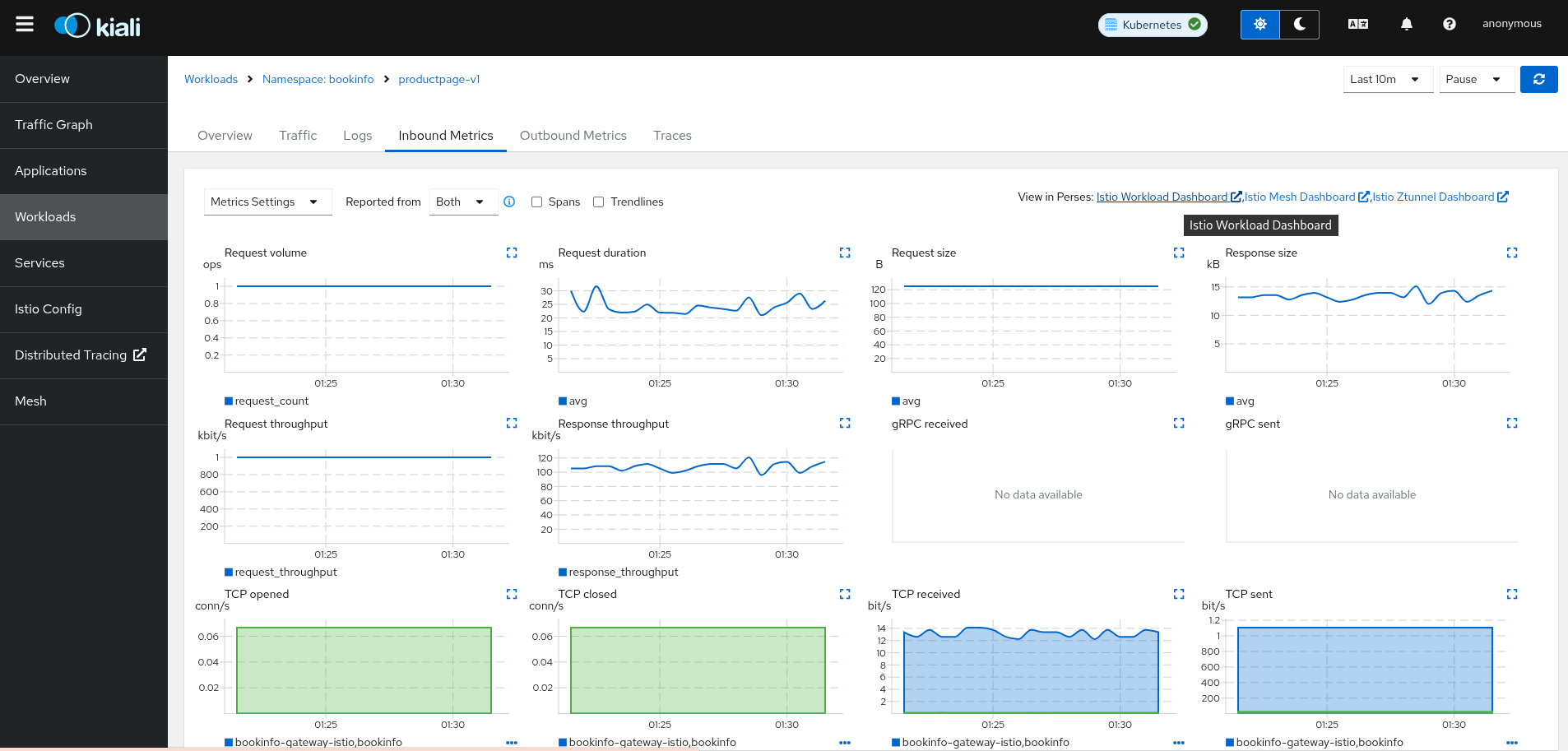
For these links to appear in Kiali you need to manually configure the Perses URL and the dashboards that come preconfigured with Istio, like in the following example:
Kiali will query Perses and try to fetch the configured dashboards. For this reason Kiali must be able to reach Perses, authenticate, and find the Istio dashboards. The Istio dashboards must be installed in Perses for the links to appear in Kiali.
spec:
  external_services:
    perses:
      enabled: true
      # Perses service name is "perses" and is in the "telemetry" namespace.
      internal_url: 'http://perses.telemetry:4000/'
      # Public facing URL of Perses
      external_url: 'http://my-ingress-host/perses'
      dashboards:
        - name: "Istio Service Dashboard"
          variables:
            namespace: "var-namespace"
            service: "var-service"
            datasource: "var-datasource"
        - name: "Istio Workload Dashboard"
          variables:
            namespace: "var-namespace"
            workload: "var-workload"
        - name: "Istio Mesh Dashboard"

        - name: "Istio Ztunnel Dashboard"
          variables:
            namespace: "var-namespace"
            workload: "var-workload"
      # Perses project
      project: "istio"
The described configuration is done in the Kiali CR when Kiali is installed using the Kiali Operator. If Kiali is installed with the Helm chart then the correct way to configure this is via regular –set flags.
When running Perses with the cluster observability operator in OpenShift, it requires an additional configuration item (Available from Kiali >2.17), so the url format can be compatible with the plugin UI URL:
spec:
  external_services:
    perses:
      ...
      url_format: "openshift"
The internal URL shouldn’t be set to avoid an internal validation of the Dashboards. The external URL should be set to the OpenShift cluster, without the additional path.
Perses authentication configuration
The Kiali CR provides authentication configuration that will be used to connect to your Perses instance and for detecting your Perses version in the Mesh graph.
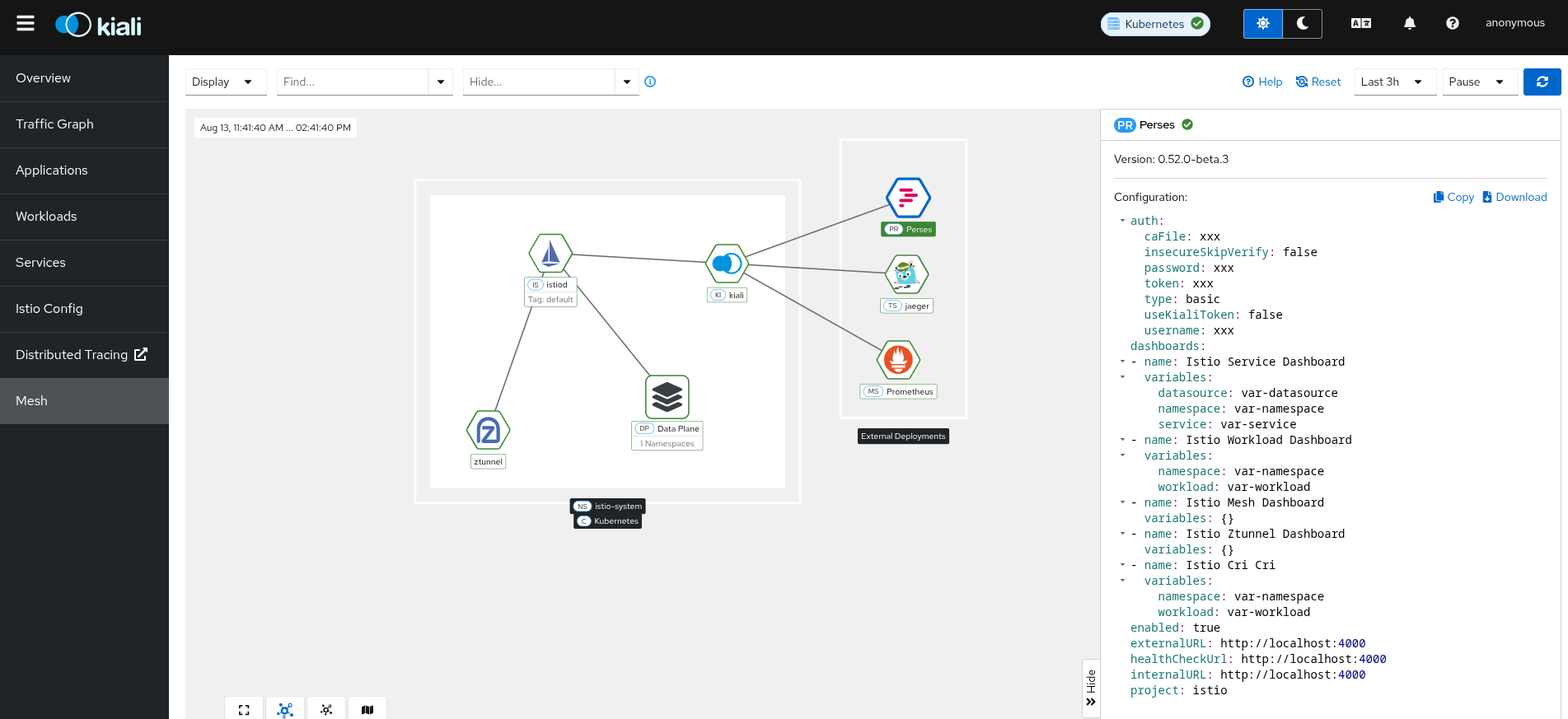
Basic and OAuth2 client_credentials authentication are supported.
spec:
  external_services:
    perses:
      enabled: true
      auth:
        insecure_skip_verify: false
        password: "pwd"
        type: "basic"
        username: "user"
      health_check_url: ""
To configure a secret to be used as a user or password, see this FAQ entry.
To authenticate using OAuth2 client_credentials flow, set type: "oauth2" and provide the oauth2 block:
spec:
  external_services:
    perses:
      auth:
        type: "oauth2"
        oauth2:
          client_id: "my-client-id"
          client_secret: "secret:my-oauth2-secret:client_secret"
          token_url: "https://idp.example.com/token"
          scopes: []            # optional: list of OAuth2 scopes to request
          audience: ""          # optional: some providers require this
          auth_style: "header"  # "header" (default) or "params"
The client_secret field supports the secret:<secretName>:<secretKey> pattern for automatic secret mounting and rotation without pod restart. See the FAQ entry for details.
insecure_skip_verify applies only to the Perses connection, not to the OAuth2 token endpoint. The token endpoint always validates TLS certificates. To trust a private CA for the token endpoint, add the CA to the kiali-cabundle ConfigMap as described in the TLS Configuration page.
TLS Certificate Configuration
If your Perses server uses HTTPS with a certificate issued by a private CA, see the TLS Configuration page to learn how to configure Kiali to trust your CA.