Appearance
The standalone Kiali Console lets you customize how the interface looks on your device. These choices are saved in your browser and persist across sessions.
For language settings, see Internationalization.
Opening Preferences
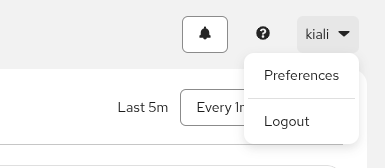
Open the user dropdown in the top-right corner and select Preferences.
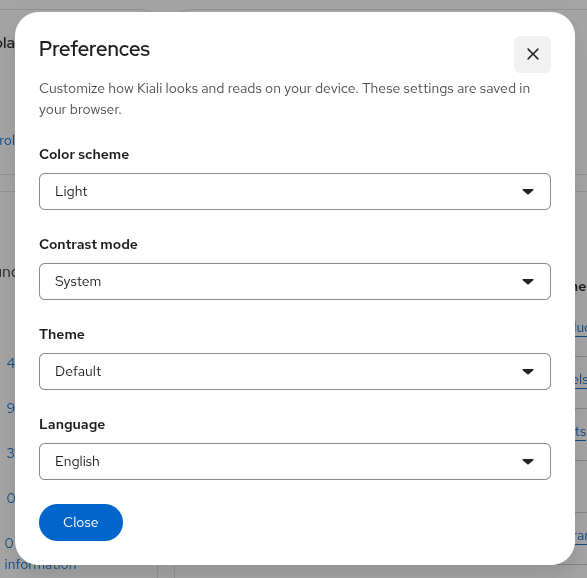
In the Preferences modal, adjust color scheme, contrast mode, and theme:
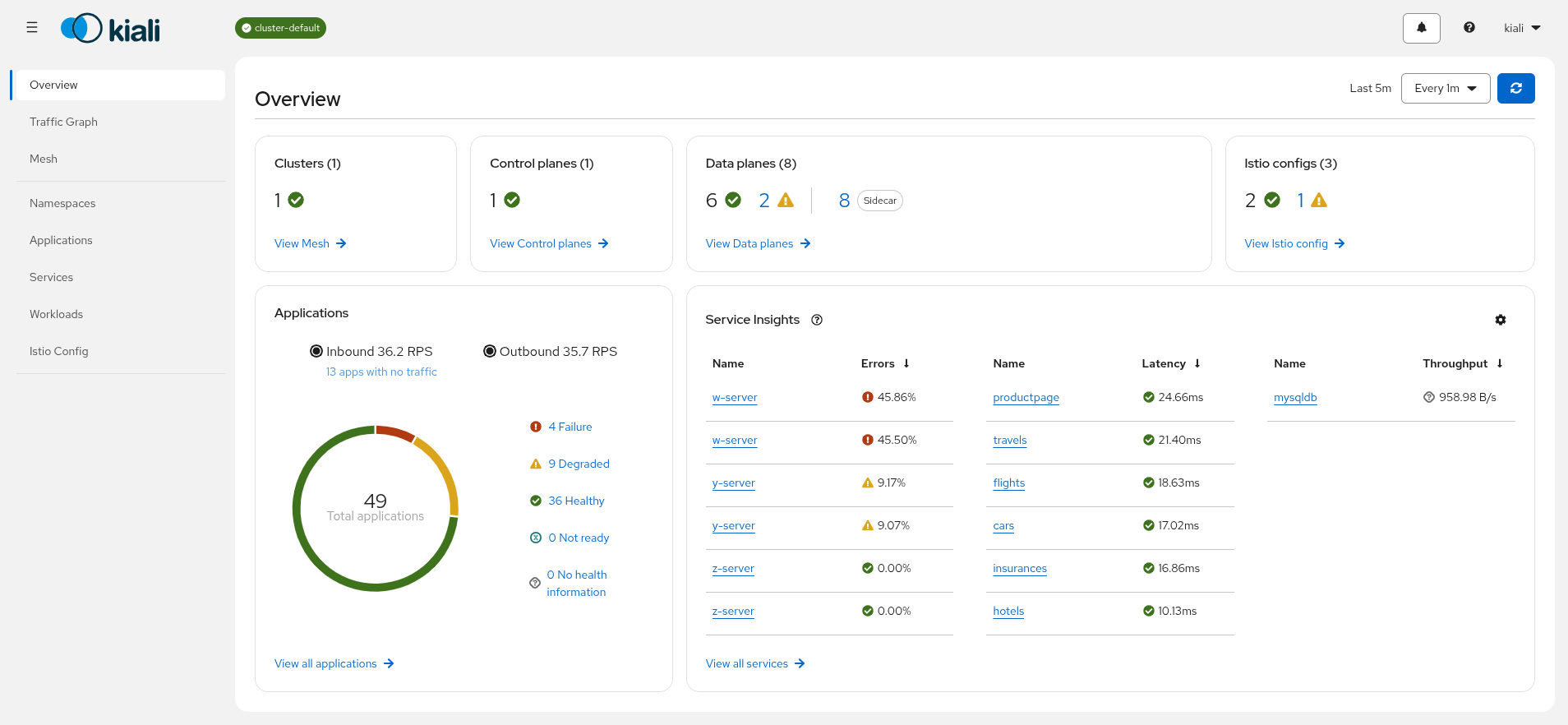
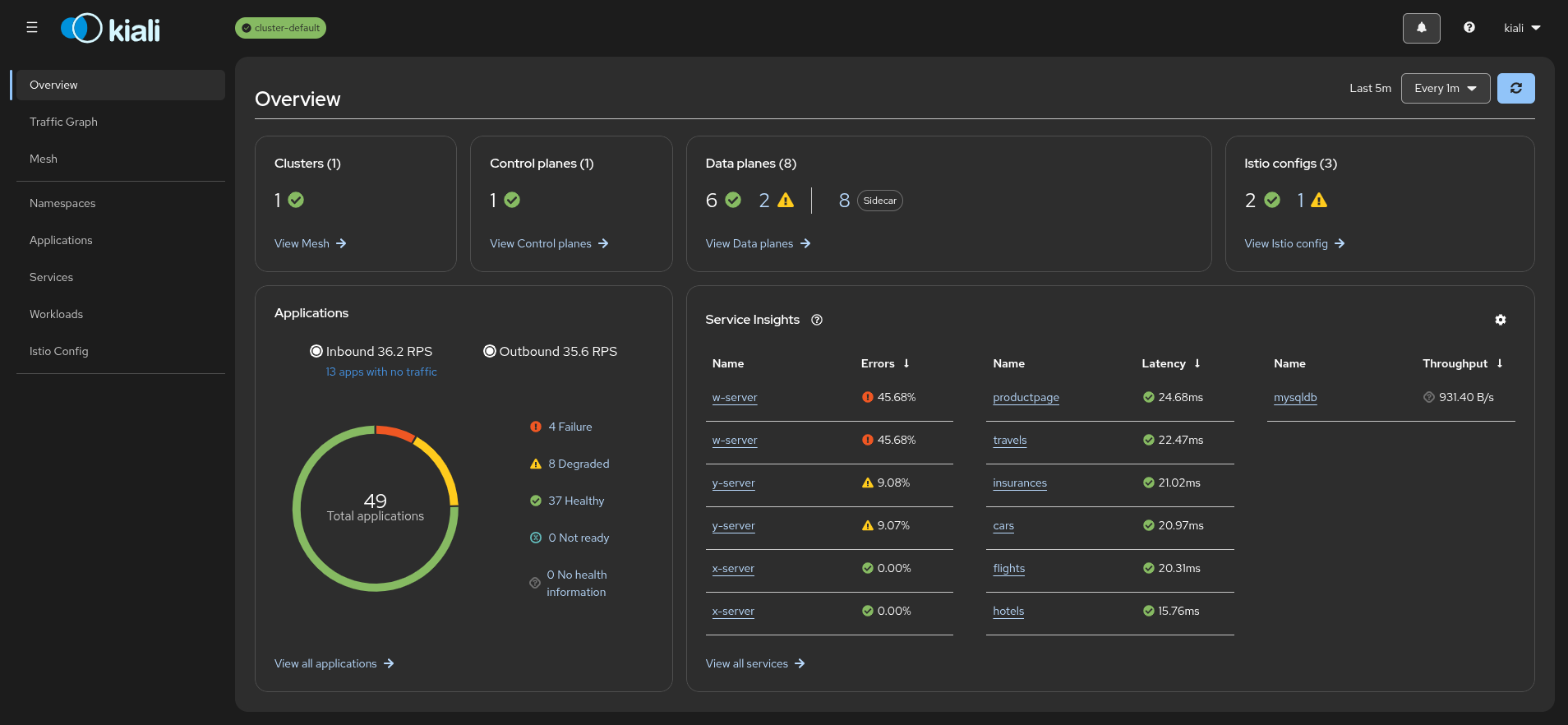
The examples below use the Overview page so you can compare how each option changes the console.
Color scheme
Choose how light or dark the interface appears:
| Option | Behavior |
|---|---|
| System | Follows your operating system’s prefers-color-scheme setting. |
| Light | Always uses the light color scheme. |
| Dark | Always uses the dark color scheme. |
When System is selected, Kiali updates automatically if you change the OS color scheme while the console is open.
Examples
System follows your OS light or dark setting, so there is no fixed console appearance to show here.
Light with default contrast and default theme:
Dark with default contrast and default theme:
Contrast mode
Choose the visual contrast style applied to the interface:
| Option | Behavior |
|---|---|
| System | Follows your operating system’s prefers-contrast setting. |
| Default | Standard PatternFly contrast (traditional appearance). |
| Glass | PatternFly glass contrast mode with translucent surfaces and opaque control fills for buttons and toggles. |
| High contrast | PatternFly high-contrast mode for stronger visual separation. |
When System is selected, Kiali updates automatically if you change the OS contrast preference while the console is open. If the OS requests increased contrast, Kiali applies high contrast; otherwise it uses the default style. Glass is available only as an explicit choice and is not combined with high contrast.
Examples
System follows your OS contrast preference, so there is no fixed console appearance to show here.
Default contrast is shown in the light and dark color scheme examples above.
Glass with light color scheme and default theme:
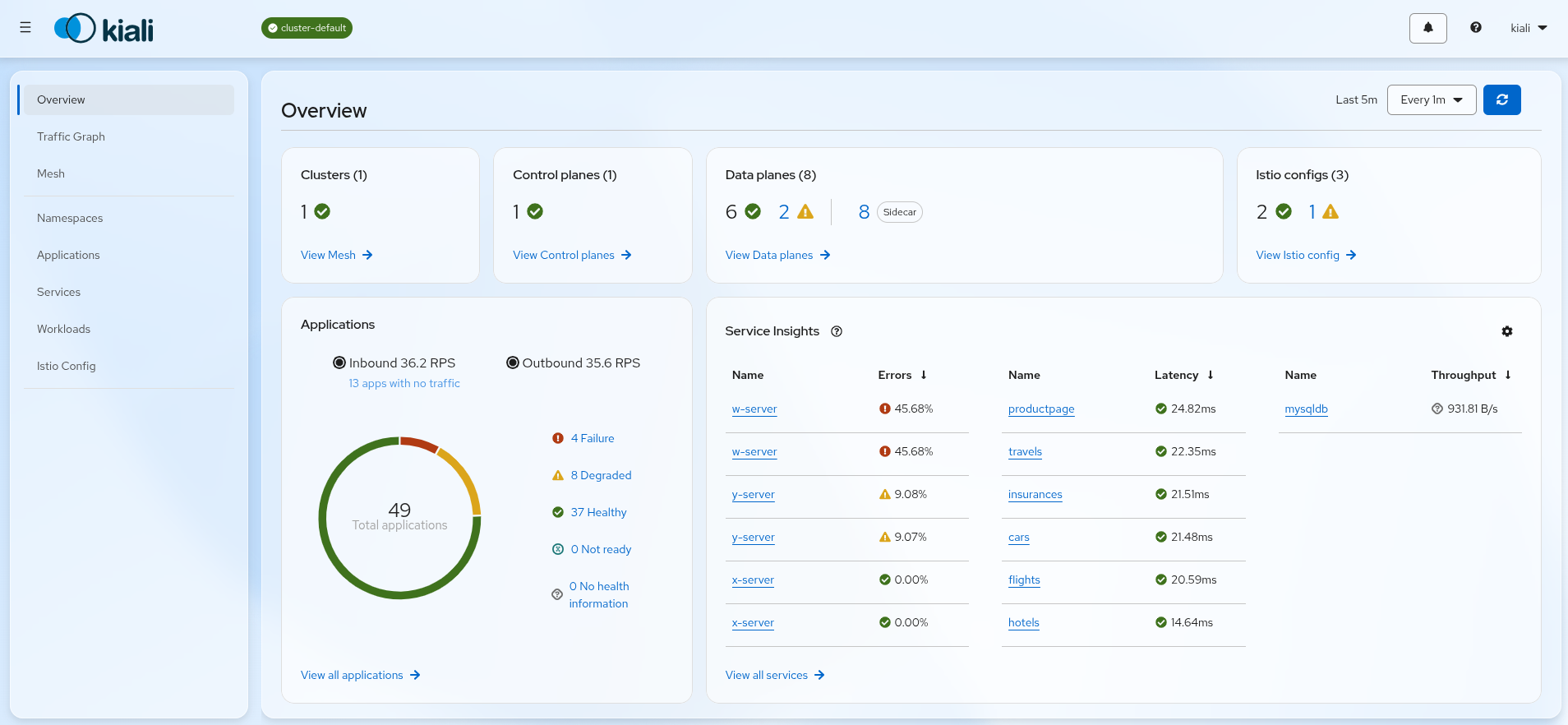
High contrast with light color scheme and default theme:
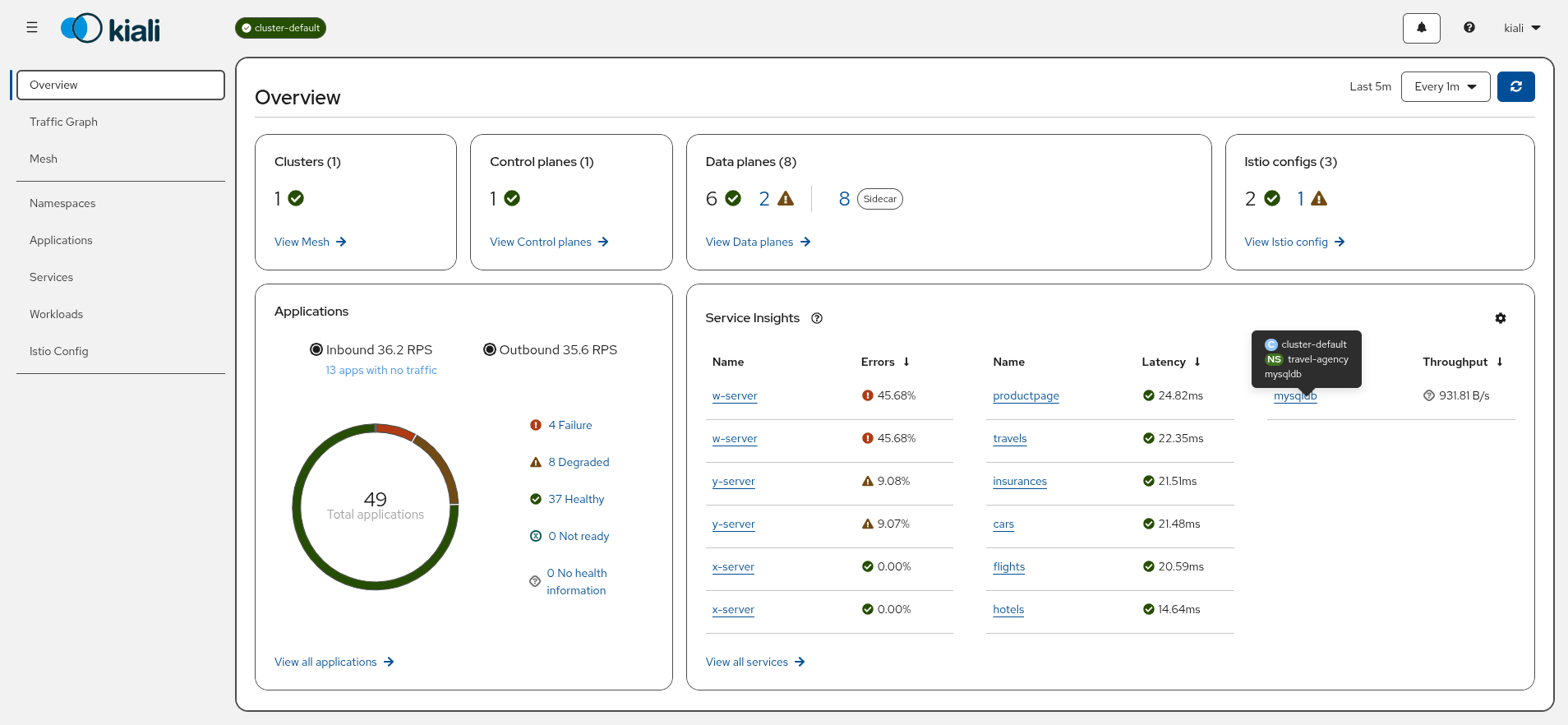
Theme
Choose the PatternFly theme variant:
| Option | Behavior |
|---|---|
| Default | Standard PatternFly theme. |
| Project Felt | PatternFly Project Felt theme variant. |
Theme is independent of color scheme and contrast mode. You can combine, for example, dark color scheme with Project Felt.
Examples
Default theme is shown in the light, dark, glass, and high contrast examples above.
Project Felt with light color scheme and glass contrast:
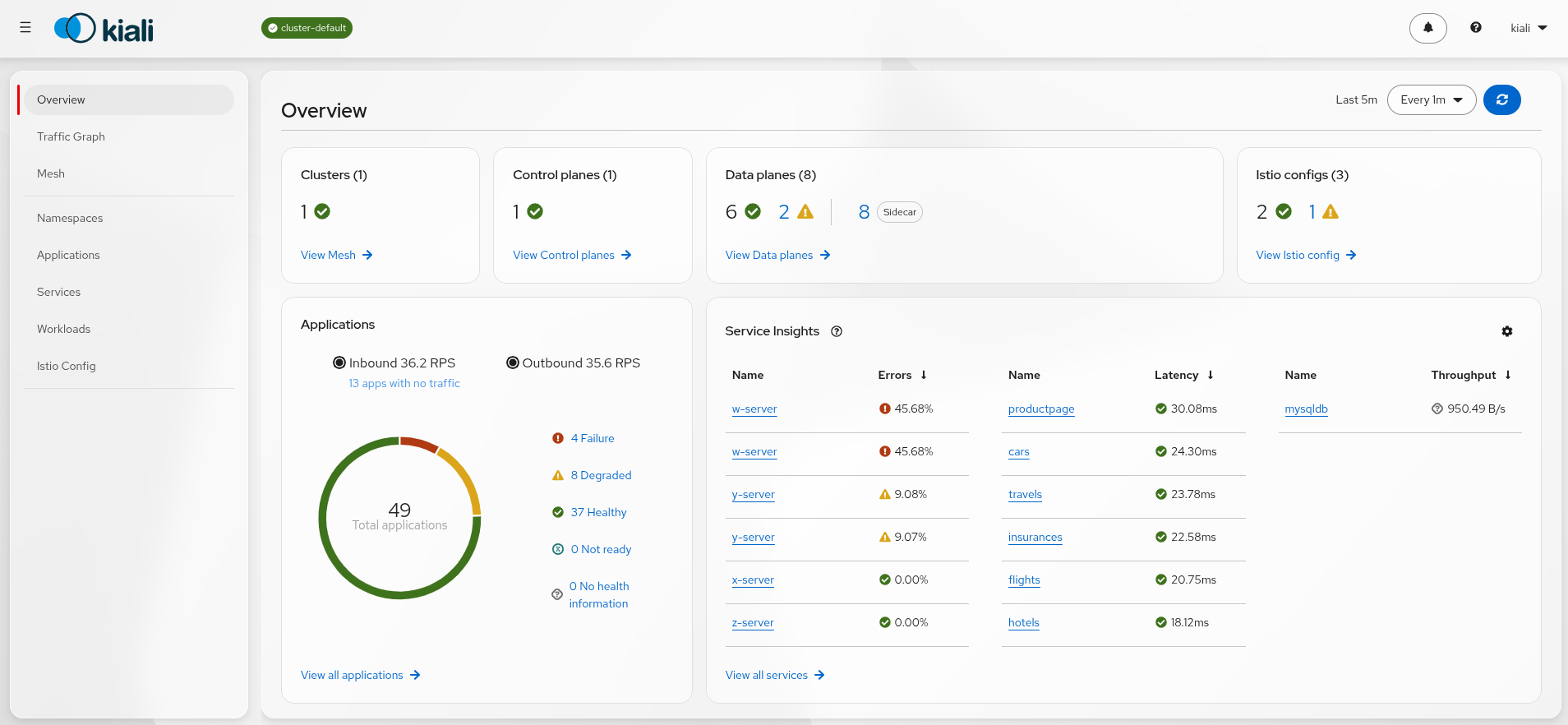
Standalone vs. OSSMC
The Preferences appearance controls described above apply only to the standalone Kiali Console.
In the OSSMC plugin, appearance is handled by the OpenShift Console, not by Kiali. Use the console’s appearance settings to change color scheme, contrast, glass, felt, and high-contrast modes; OSSMC inherits those styles from the console.